
Everyone wants to talk about what agents can do. What they can query, what they can create, what decisions they can make. Almost nobody starts with how the agent gets kicked off in the first place.
That’s a mistake. Trigger design matters more than most people think when deploying Workflow Agents in production - because the trigger determines not just when your agent runs, but how well it fits into the way your organisation actually works.
The 26A release introduced three trigger types for Workflow Agents - webhook, email, and schedule - alongside native integrations for Microsoft Teams and Slack. Between them, they cover most of what you’ll need. I’m not going to walk through what triggers exist - you can find that in the docs. This is about which trigger fits which problem, and what you actually need to know to configure each one properly.
One thing to flag upfront: the agent must be in a published state for any trigger to work. Sounds obvious. It isn’t, I’ve been personally tripped by this more than once.
The Webhook Trigger: System-to-System Integration
This is what sits behind the invokeAsync REST API, and it’s where you’ll spend the most time if your organisation runs Fusion alongside other enterprise systems.
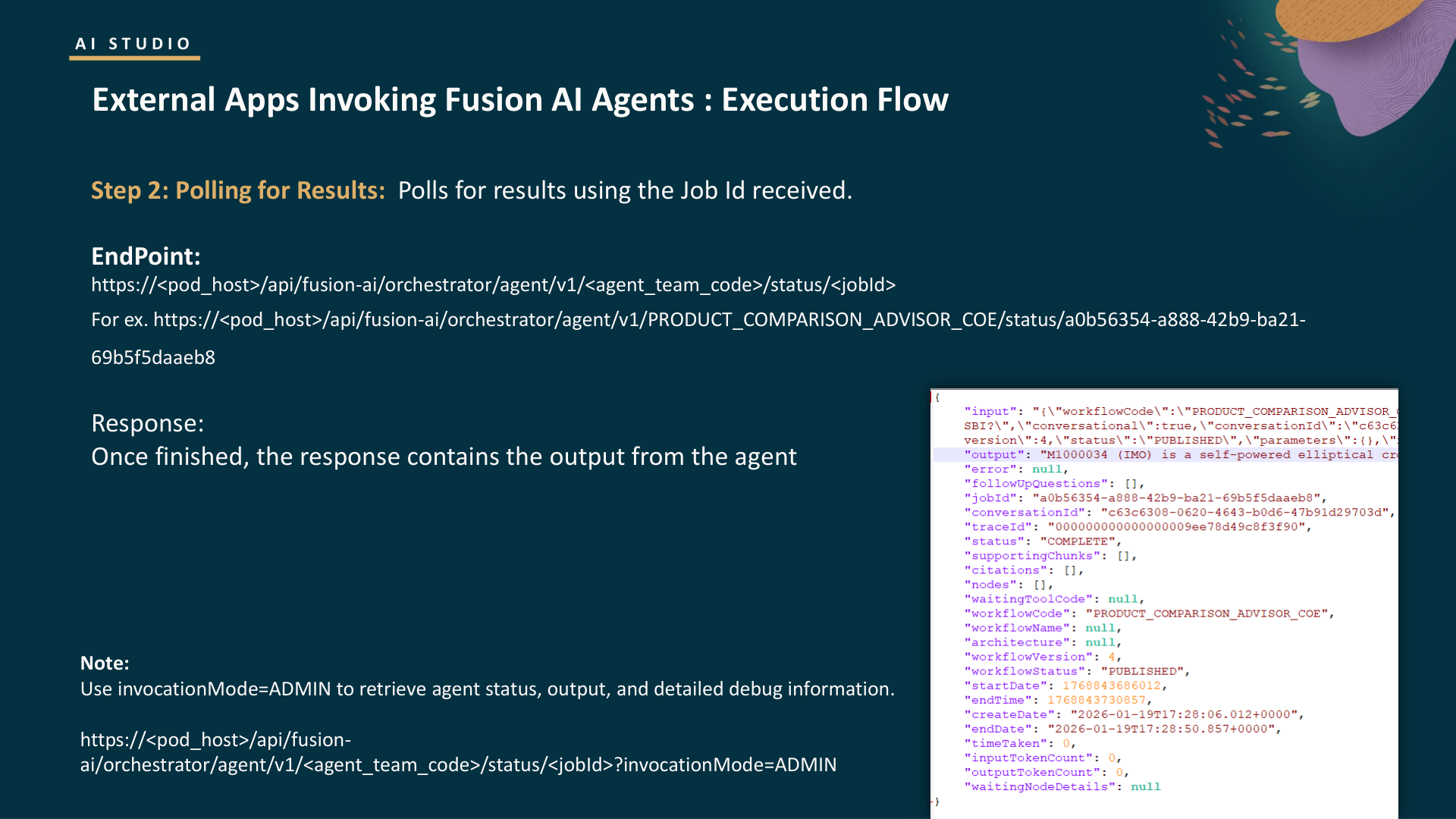
The pattern is a two-step async flow. An external application sends a POST to the invoke endpoint - passing a user prompt or structured data - and because the agent may take time to reason through that input, the call returns a job ID immediately. The calling system then polls a separate status endpoint using that job ID to retrieve the final output.
The endpoint URLs follow a consistent structure:
Invoke:
https://<pod_host>/api/fusion-ai/orchestrator/agent/v2/<workflowCode>/invokeAsyncStatus:
https://<pod_host>/api/fusion-ai/orchestrator/agent/v2/<workflowCode>/status/<jobId>
Authentication is standard OAuth 2.0 bearer tokens via OCI IAM/IDCS. Nothing new if you’re already working with Fusion APIs.
The Request Body: More Than Just a Message
The invokeAsync request body supports more fields than most people realise. Beyond the obvious message field (your user prompt), there’s conversational (boolean - set to true for multi-turn exchanges), conversationId (pass back the ID from a previous response to continue a conversation), invocationMode (either END_USER or ADMIN for debug output), parameters (key-value object for webhook input variables), streamOutput and progressMessage (booleans for streaming and progress updates), and resumeNodeInput (for resuming a workflow that’s paused at a human approval step). The status field lets you target either the PUBLISHED or DRAFT version of a workflow - useful during testing.
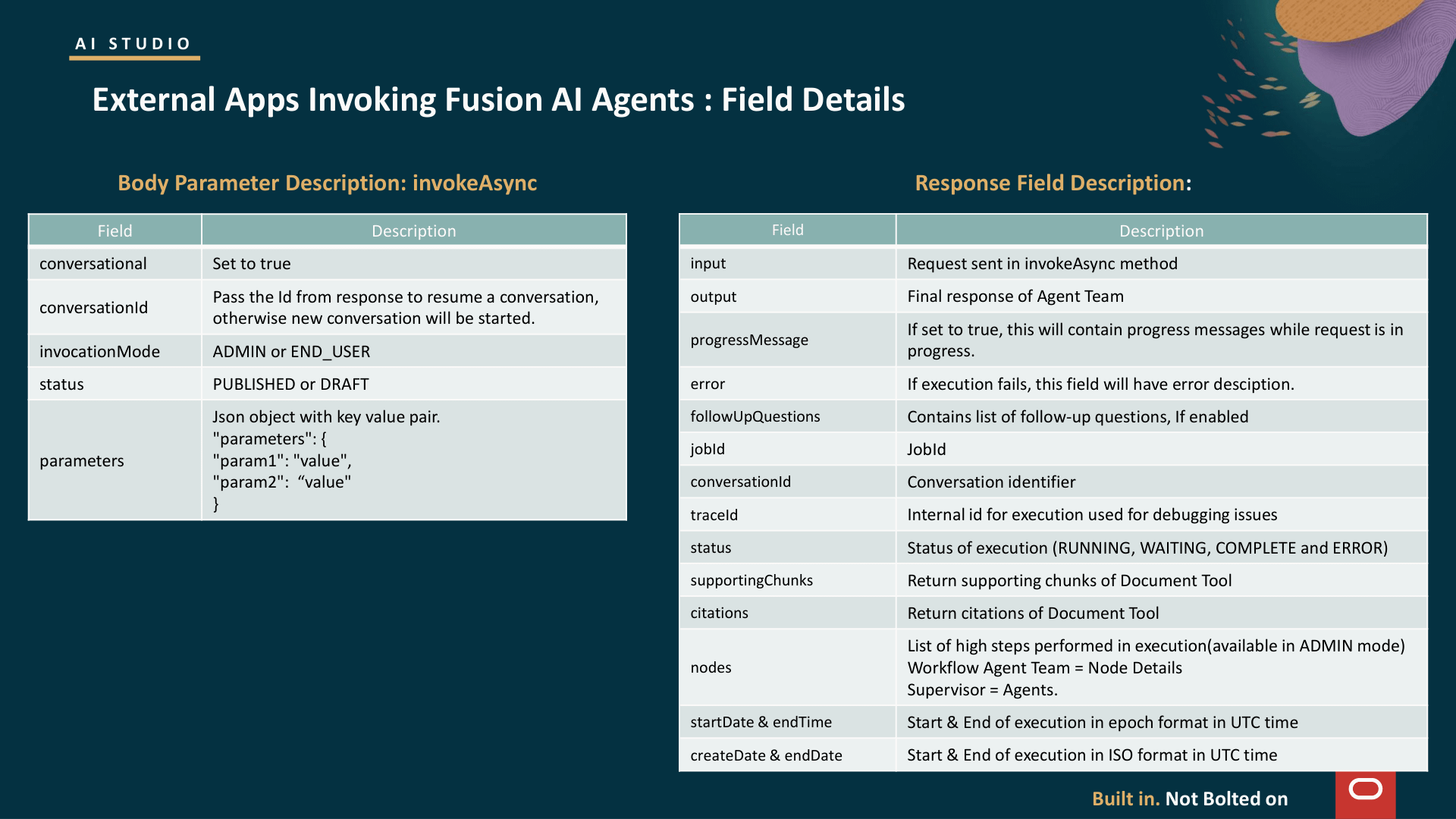
The initial response returns immediately with status RUNNING, a jobId for polling, and a conversationId for future multi-turn exchanges. You then poll the status endpoint until the status transitions to COMPLETE or ERROR. When COMPLETE, the output field contains the agent’s final response. If the status is WAITING, that means the workflow has paused at a human approval step - your integration needs to handle that explicitly.
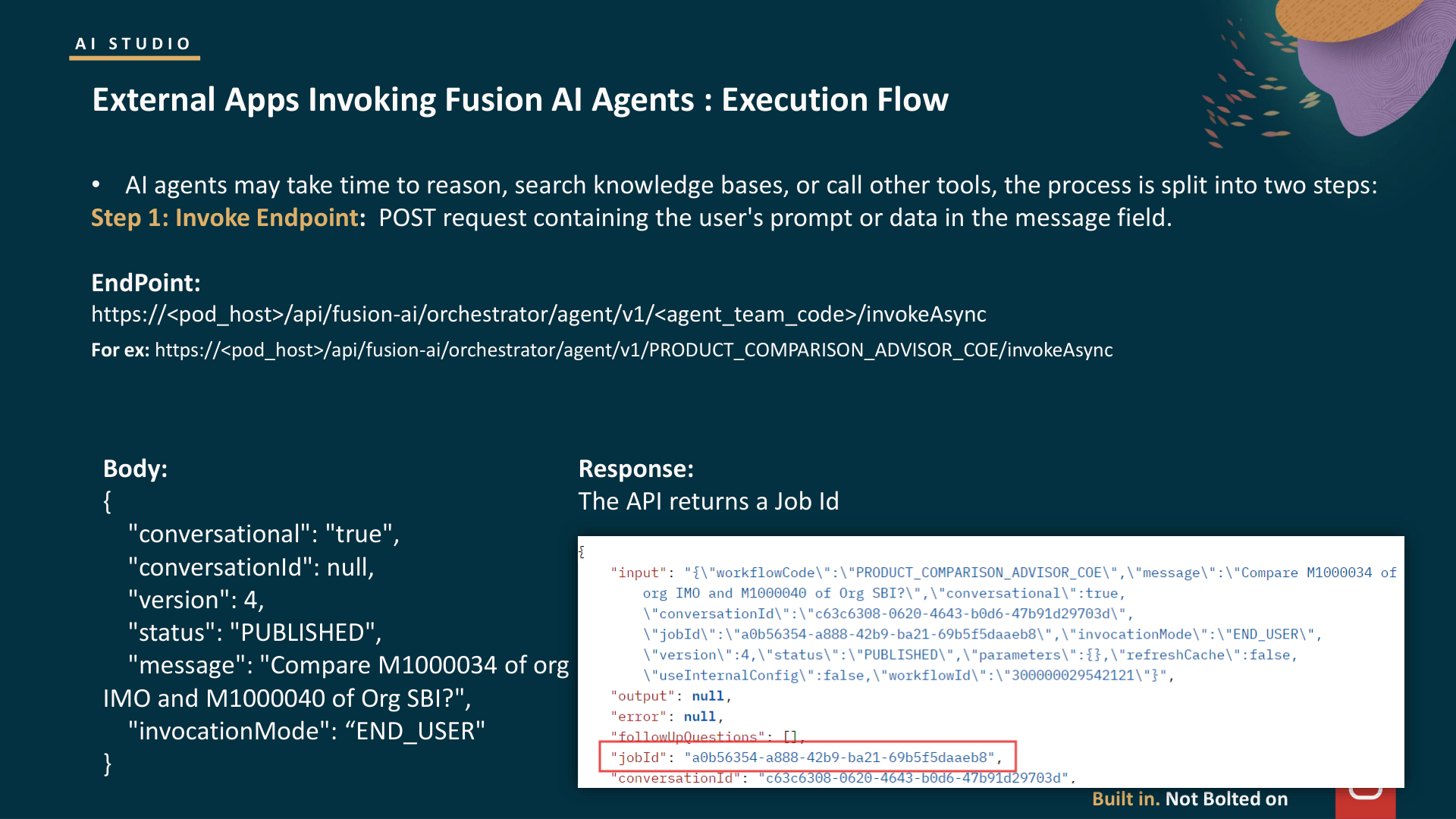
For development, appending ?invocationMode=ADMIN as a query parameter (or setting it in the request body) is worth knowing about. It returns the full node execution trace - traceId, start and end timestamps in both epoch and ISO format, input and output token counts, node-level execution details, and timeTaken in milliseconds. That saves you a lot of debugging time compared to guessing from the output alone.
Setting Up External Access: The IAM Configuration
If you’re calling invokeAsync from outside the Fusion ecosystem, there’s a multi-step IAM setup that needs to happen first. The Oracle documentation outlines five steps: create a confidential application in Fusion IAM that represents the external app, enable access to the AI Agent Studio service for invokeAsync, create a matching confidential application in the external app’s own IAM, register the external app in the AI Agent Studio Credentials tab (base URL, IDCS URL, scope, public/private keys), and then create business objects from the registered data source if needed. It’s not complex, but it’s sequential - and skipping a step means silent failures rather than helpful error messages.
Two profile options also need to be set at site level before any of this works: ORA_ASE_SAS_INTEGRATION_ENABLED must be set to Yes, and ORA_HCM_VBCS_PWA_ENABLED must be set to Y for end user access. These are the kind of prerequisites that don’t surface in any error message - you just get a blank response or a 403.
Parameterised Webhooks
This is the more powerful pattern. When configuring a webhook trigger, you define named input variables - with explicit types like string or number - that get passed into the REST call as part of the parameters object. Those values are then available within the workflow as trigger variables, accessible through the context picker under Input > Variables.
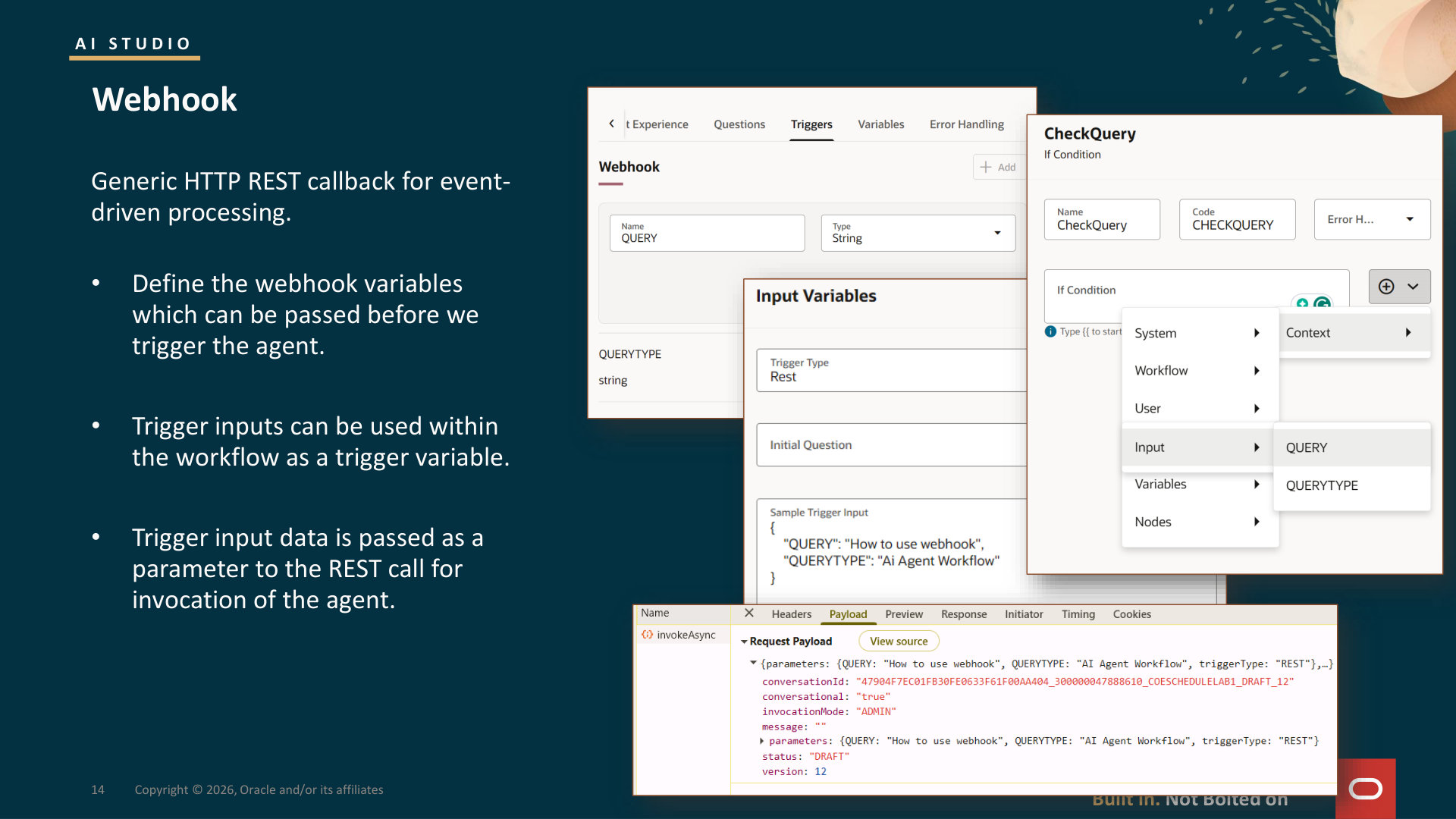
So in practice: a single published workflow can handle multiple variations of a process, with the calling system supplying the context that shapes how the agent behaves. Instead of building separate workflows for every scenario, you parameterise the inputs and let the workflow adapt.
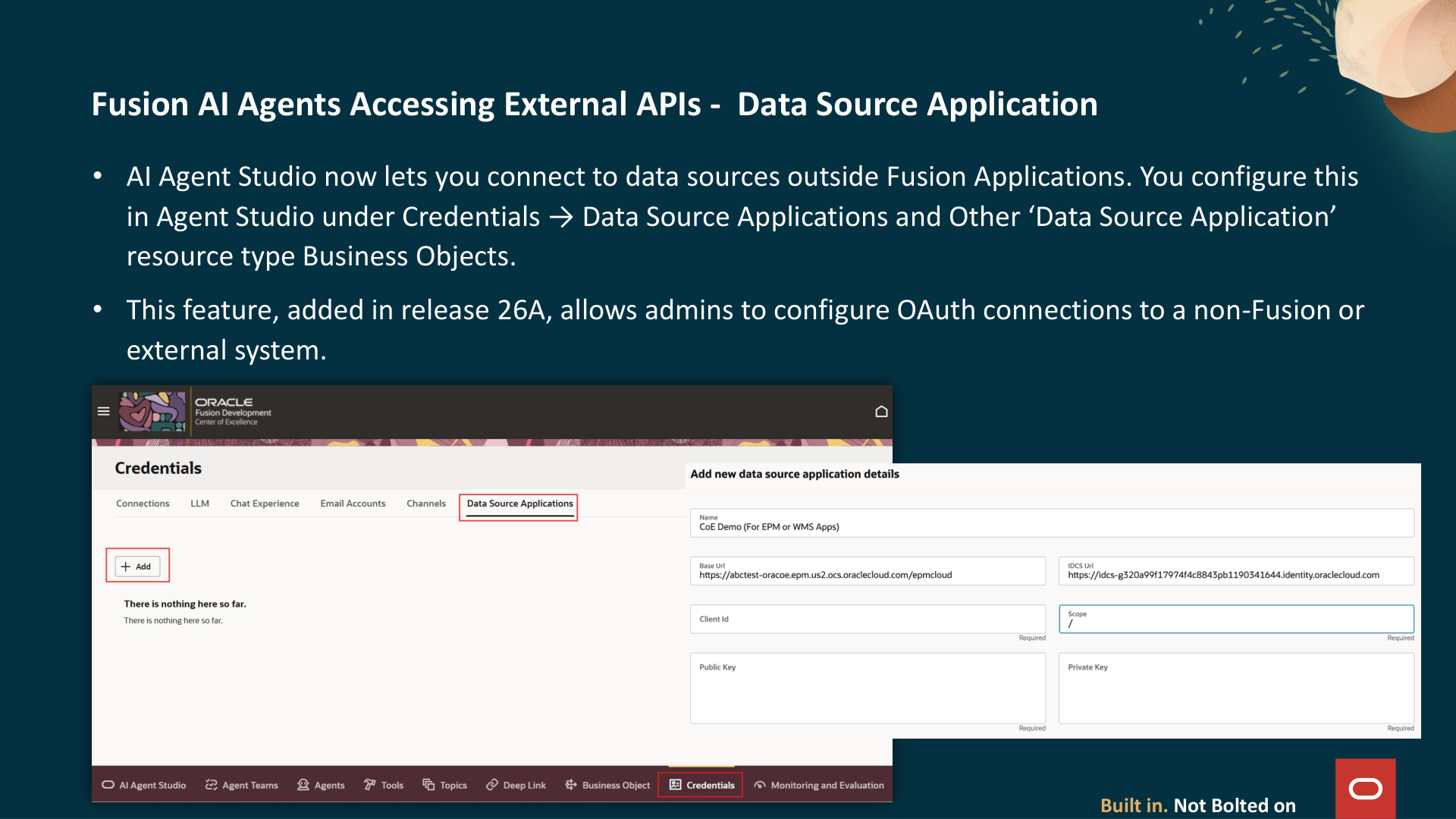
If your integration platform, middleware, or an application like EPM or a third-party system needs to invoke a Fusion agent without any human initiating the conversation - webhook is the right choice. And with the Data Source Applications capability in 26A, those agents can now reach back out to non-Fusion systems too, using OAuth connections configured under Credentials. The integration story is becoming properly bidirectional.
Multi-Turn Conversations via the API
The conversationId field is what makes multi-turn integrations work. After the first invokeAsync call, the response includes a conversationId. Pass that back in the next request with conversational set to true, and the agent retains the full conversation history - meaning it can reason about what’s already been discussed rather than treating each call as a cold start. For integration scenarios where an external system needs a back-and-forth exchange with a Fusion agent (rather than a single fire-and-forget), this is what makes that possible. When session management is enabled, the session persists for interactive conversation with short-term memory that condenses chat history to reduce latency and token usage.
The External REST Tool: Reaching Beyond Fusion
Before getting to the other trigger types, I want to cover the External REST tool - because it’s the primary mechanism for connecting workflows to non-Fusion systems, and it comes up in almost every integration design I’ve seen.
The configuration follows a consistent pattern: you set a base API URL, choose an authorization type (API Key or OAuth), then define individual functions - each with an HTTP method, resource path, parameters, headers, and body. POST with JSON body is the most common pattern for create/update operations: leave requests, job requisitions, benefit enrolments, record updates in external systems.
The clever bit is slottable parameters. You define placeholder fields in headers, query parameters, and body content - and at runtime, the LLM learns to generate the correct values based on context. The key to making this work well is providing good example parameters at design time. The agent uses those examples to understand what kind of data each field expects, and Oracle gives you the ability to test individual functions during design - before the workflow is published - with sample parameters to verify the integration works.
If you’re coming from traditional Fusion integration work, this is a big change. Instead of building middleware or writing custom adapters, you’re configuring REST connections directly within the agent studio and letting the LLM handle the dynamic parts. It’s not a replacement for OIC in complex integration scenarios, but for point-to-point API calls within a workflow, it’s a lot quicker to set up.
The Email Trigger: Document Ingestion That Actually Works
The email trigger doesn’t get as much attention as the REST API. It should.
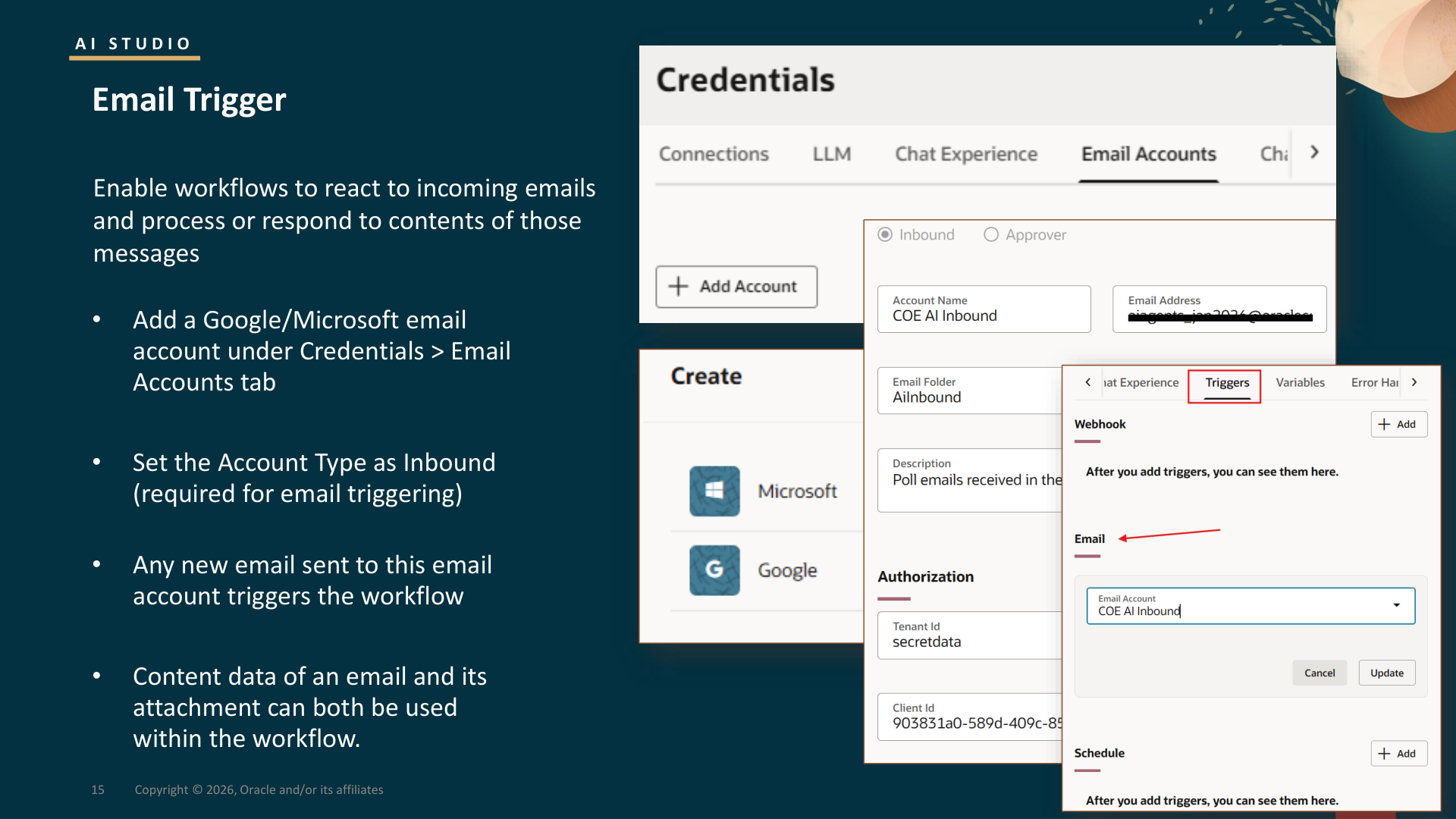
Setup is simple. Configure a Google or Microsoft email account under Credentials > Email Accounts with the account type set to Inbound. From that point on, any new email arriving in that inbox automatically kicks off the workflow. No polling job, no middleware.
What makes it useful is what context it gives you. The email body, sender address, subject line, headers, and processed attachment text are all available as context variables:
$context.$triggers.EMAIL.$input.content- email body$context.$triggers.EMAIL.$input.fromAddress- sender$context.$triggers.EMAIL.$input.attachments[0].context- extracted text from attachments
That combination makes document ingestion workflows easy to wire up.
What Document Ingestion Actually Looks Like
The partner training materials had use cases that give you a sense of how far this can go:
P.O. to Sales Order: Customer purchase order arrives as a PDF attachment. The workflow ingests the document, classifies it as an order, extracts customer details, products, pricing, and terms, runs a catalogue and pricing check with exceptions flagged for human review, then creates and fulfils the sales order in Order Management.
Supplier Quote to Purchase Requisition: Same pattern, different extraction - supplier details, items, quantities, UOMs, currency and amounts. Confirm the supplier and line count, then create the requisition in Procurement.
Court Order to Payroll Garnishment: A court order received via secure email triggers a workflow that identifies the employee, case number, and amounts, checks HR and payroll records for exceptions, then applies the deduction and updates payroll.
FDA Recall to Inventory Quarantine: An FDA recall notice triggers identification of affected item codes, lot numbers, and facilities, matches against current inventory, then quarantines items and blocks distribution.
These are exactly the kind of processes where someone had to touch every step manually.
Two practical constraints to know upfront. First: each workflow can monitor only one unique inbound email account. You can’t have a single workflow listening to multiple mailboxes. Second: you cannot reuse the same inbound email account across multiple workflows. One inbox, one workflow - that’s the model. This means dedicated, purpose-specific inboxes rather than a shared mailbox with filtering logic.
It’s also worth configuring error notification destinations early. You can specify error destination emails with context expressions - meaning if the workflow fails, the right person gets notified with the relevant context automatically rather than the failure disappearing silently.
To verify your email trigger is working, go to the Monitoring and Evaluation tab, open the Activities subtab, and check Inbound Emails. You’ll see the trigger email contents and can verify whether the workflow was actually initiated. Same approach works for schedule triggers - the Schedules view under Activities shows whether your scheduled runs are firing.
File Upload via Chat: UCM and the 26B Simplification
Not every document processing scenario starts from an email. Sometimes it starts from a user uploading a file during a conversation.
In 26A, you added the MultiFileProcessor tool to an agent. Users could upload up to five files at a time, combined size limit of 50 MB, across formats including PDF, XLSX, DOCX, PPTX, CSV, JSON, XML, and images. Third-party cloud storage uploads from Google Drive, Dropbox, or OneDrive were also supported.
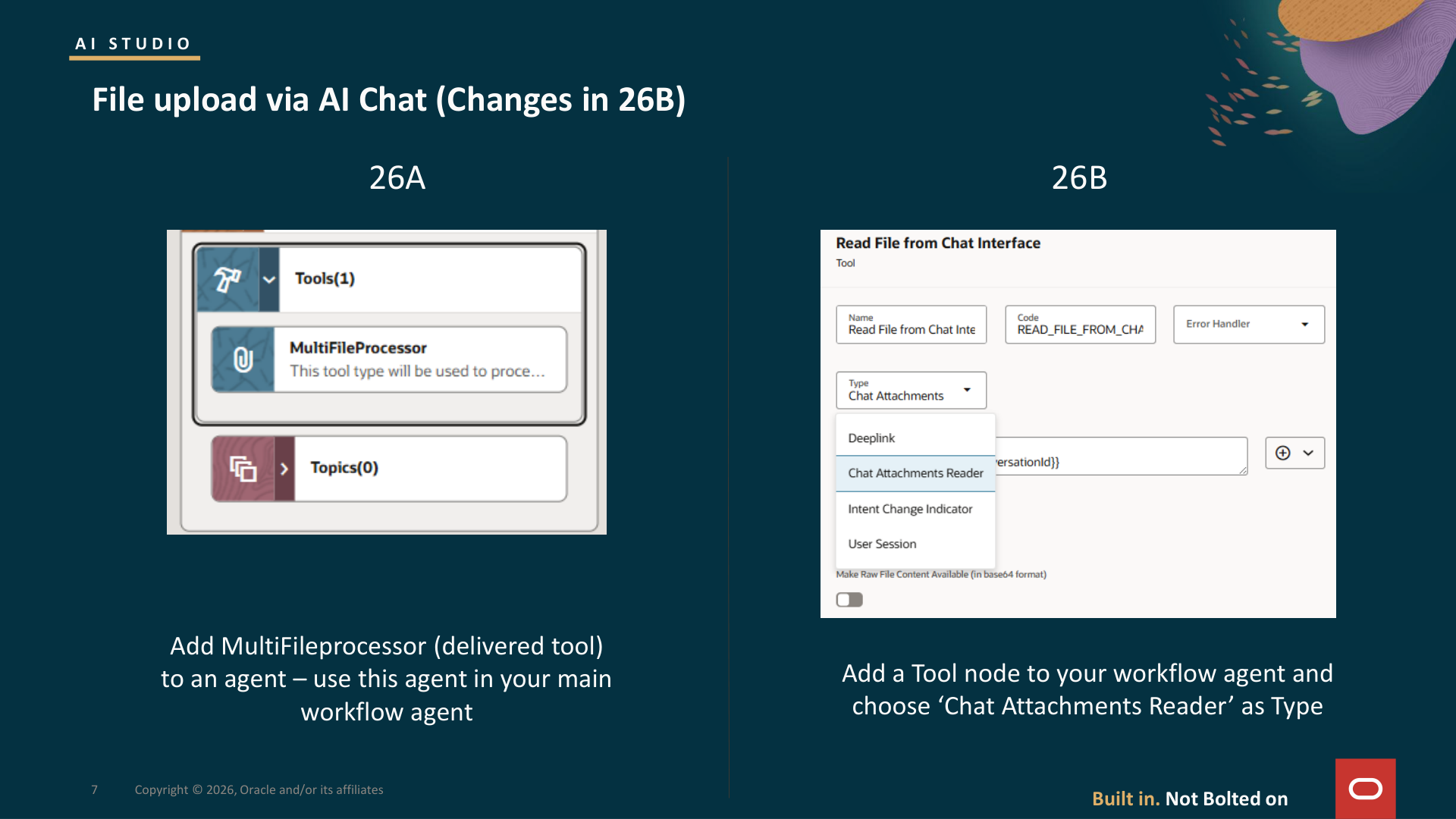
In 26B, the mechanism was simplified. Instead of the MultiFileProcessor tool, you add a Tool node to your workflow and select “Chat Attachments Reader” as the type. Cleaner approach - the file reading becomes a node in the workflow rather than a tool attached to an agent.
For UCM-based document processing - where the file is already an attachment on a Fusion business object - the Document Processor node handles retrieval. You configure the metadata (family, product, business object fields) and the function used for retrieval (such as get_document_for_processing). The node retrieves the file from UCM and sends it to the document-processing backend for text extraction.
The Schedule Trigger: Governance on Autopilot
The schedule trigger is the quietest of the three, and probably the most useful for keeping things running properly on an ongoing basis.
It supports two patterns:
Interval scheduling fires on a repeating, time-based cadence - seconds, minutes, hours, or days from a defined anchor point. Good for continuous monitoring: checking headcount exceptions every four hours, or monitoring approval queue ages and escalating anything past a threshold.
Recurrence scheduling works on calendar-based patterns, either one-off or repeating. Good for structured operational rhythms: weekly payroll reconciliation, monthly compliance attestation reminders, quarterly audit preparation.
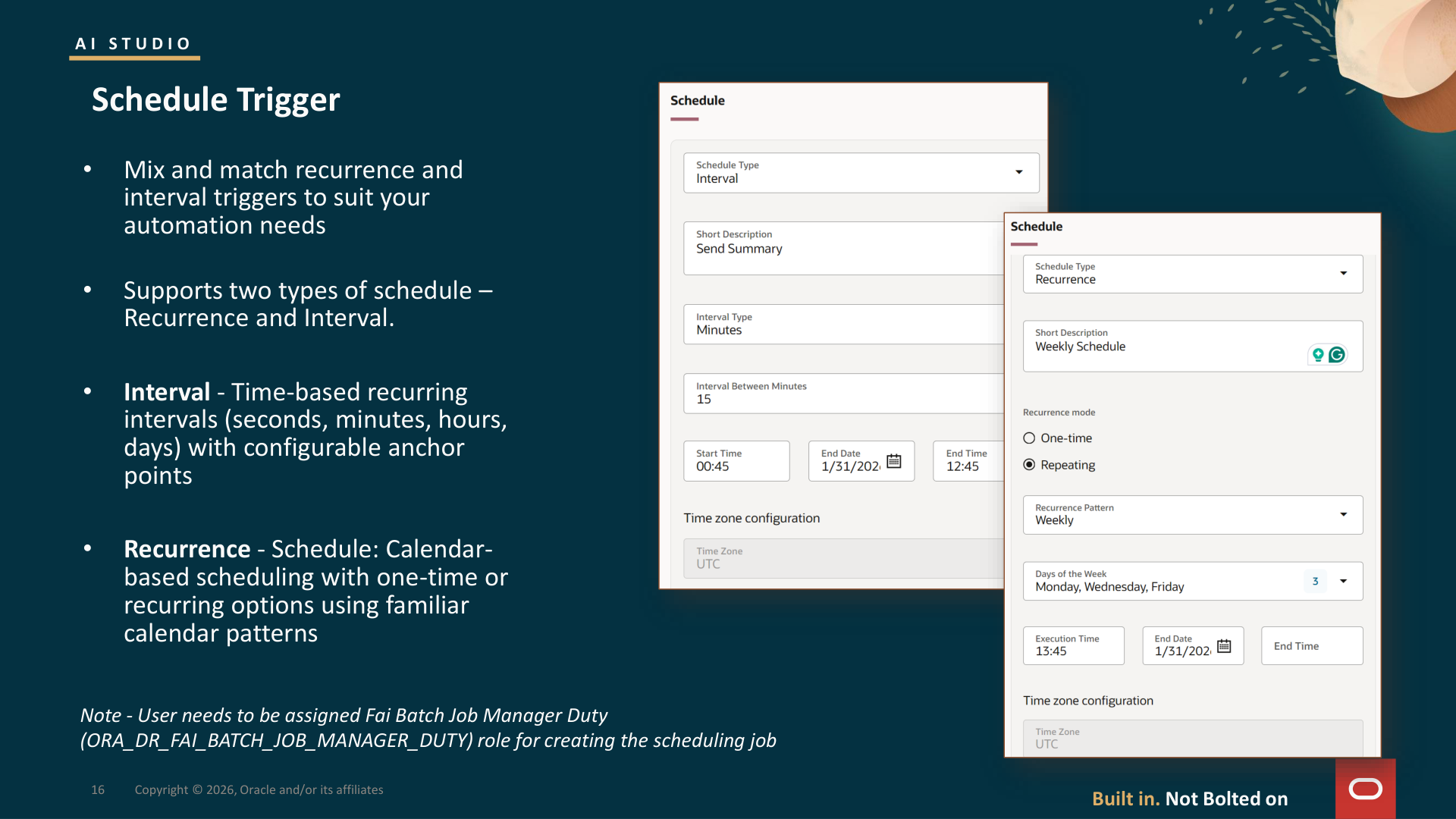
You can combine both trigger types on the same agent to suit different automation needs simultaneously.
Multi-Step Use Cases Across Fusion Pillars
The training materials had detailed scenarios showing how schedule triggers connect to broader workflow patterns:
HCM - Leave/Accommodation: Evaluates eligibility against dates and policy constraints, determines required docs and routing path, routes to HR/Legal/Benefits, handles approvals and exception reviews, creates the leave case, updates time and payroll, notifies stakeholders.
SCM - Supply Disruption Recovery: Fires on a late/shortage/quality alert, identifies impacted orders, assesses inventory constraints, determines best recovery option (cost vs SLA), reallocates and reroutes, updates ATP allocations, publishes a summary.
ERP - Dispute > Credit/Rebill: Customer dispute raised, evidence gathered from orders/shipments/terms, credit vs rebill vs deny decision, proof assembled and comms drafted, credit threshold approval, then issue credit/rebill, update AR, notify customer, close.
CX - Case-to-Resolution: New case from any channel, intent and severity classified, next-best fix and escalation criteria determined, troubleshoot steps executed, high-risk/VIP approvals, case updated, customer summary sent, closed with audit trail.
One configuration detail that’s easy to overlook: the user who creates a scheduled workflow must be assigned the FAI Batch Job Manager Duty role (ORA_DR_FAI_BATCH_JOB_MANAGER_DUTY). This isn’t obvious from the UI and it will block your scheduling job from being created. Raise it with your security team early - before you get to testing.
Teams and Slack: Meeting Users Where They Already Are
For a lot of organisations, the biggest deal in 26A isn’t a trigger in the technical sense - it’s the native channel integrations for Microsoft Teams and Slack.
These move agent interaction out of the embedded Fusion chat widget (which requires users to be in Fusion) and into the collaboration tools they’re already in all day. If user adoption of AI capabilities has been slow in your organisation, this is often the difference between something people actually use and something they forget about.
Teams Setup: Step by Step
The Teams configuration is more involved than most trigger setups, so it’s worth laying out the steps. You start by creating an Azure Bot via Azure Portal (Create Resource > Azure Bot, selecting Single Tenant as the creation type and “Create new Microsoft App ID”). Then in AI Agent Studio, navigate to Credentials > Channels > Microsoft Teams and configure the channel with the bot details. AI Agent Studio generates a manifest ZIP file, which you download and upload to the Teams Admin Center (admin.teams.microsoft.com) under Teams apps > Manage apps > Upload new app. Finally, enable the app organisation-wide via Teams apps > Setup policies > Global.
One gotcha: if you modify the channel configuration in AI Agent Studio after initial setup, you need to regenerate and re-upload the manifest ZIP to Teams. The old manifest won’t reflect the changes.
Slack Setup
Slack follows a similar manifest-driven approach. Navigate to Credentials > Channels > Slack, generate a manifest from AI Agent Studio, then go to api.slack.com/apps and create a new app “From a manifest.” Choose your workspace, paste in the manifest JSON, and complete the setup. Extract the Bot User OAuth Token from the app configuration, then return to AI Agent Studio and enter that token in the Slack channel configuration. In Slack itself, add the app to your workspace.
Security: The Channel Permissions
A new duty role in 26A groups all channel-related permissions for both Teams and Slack. The permissions are granular: create, read, update, and delete for both ChannelManifest and ExternalChatCorrelation. That’s eight individual permissions. Any user configuring channel integrations or interacting with agents through these channels needs this role assigned. Factor it into your security review ahead of go-live, not during UAT.
Embedded Workflows: Composability Through Reuse
This is a capability that sits alongside trigger design and I think will become increasingly central to how people build.
The Workflow node and Agent node allow a running workflow to call other published workflows or reusable agents as part of its execution. The Workflow node calls a published workflow or agent team; the Agent node calls a reusable agent. Think of them as building blocks for composable automation.
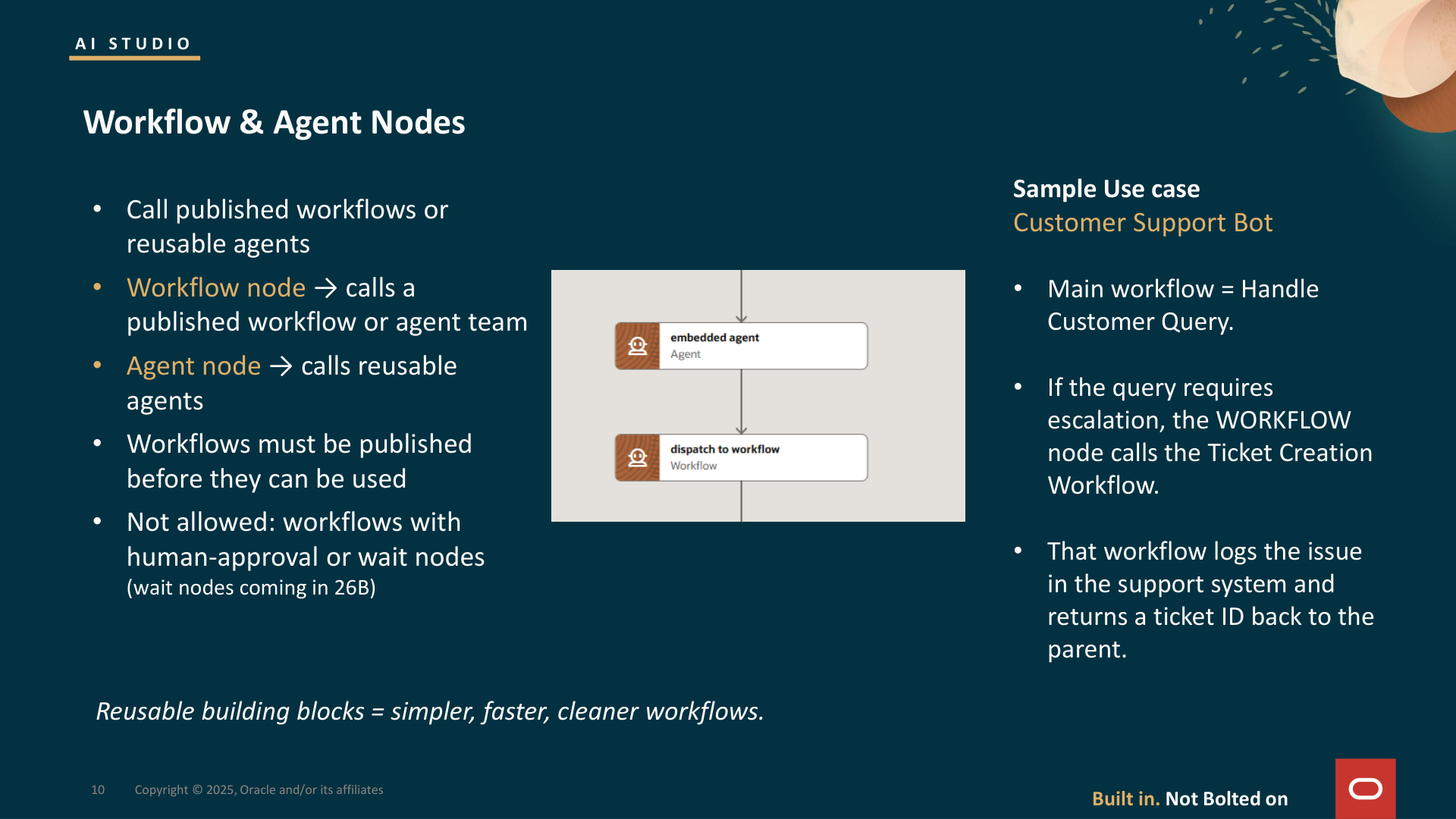
The training materials showed a customer support bot whose main workflow handles the initial query, and when escalation is needed, a Workflow node calls a separate Ticket Creation workflow. That child workflow logs the issue, returns a ticket ID to the parent. Variables and messages can be passed through - these appear as input variables if the called workflow has a webhook trigger with defined variables.
Important constraint: workflows containing human-approval nodes or wait nodes cannot currently be called as embedded workflows. The wait node restriction is noted as being addressed in 26B, but the human-approval constraint remains. Makes sense architecturally - an embedded workflow that blocks waiting for a human would create unpredictable timing for the parent - but it’s something to design around early.
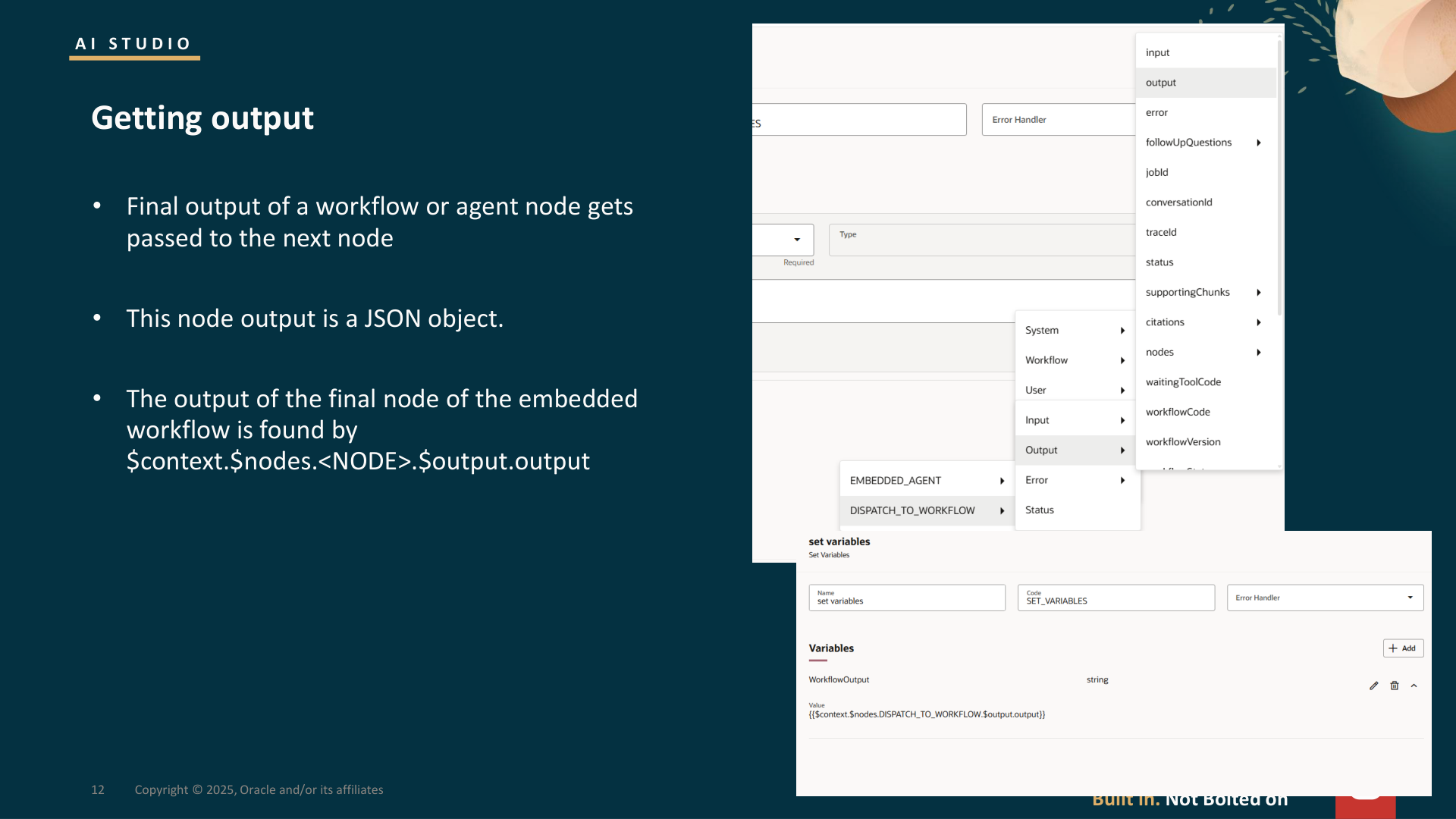
Output of the embedded workflow is accessible via $context.$nodes.<NODE_CODE>.$output.output, which means you can capture results and route subsequent logic accordingly.
The A2A Protocol: Looking Beyond Fusion
Beyond the invokeAsync API, the Connecting the Ecosystem training session introduced the A2A (Agent-to-Agent) protocol - a standardised REST interface for agent discovery and communication. The flow is discover-then-interact: search for available agents, retrieve an agent’s metadata and capabilities via its agent card, send a message to initiate a task, poll for results.
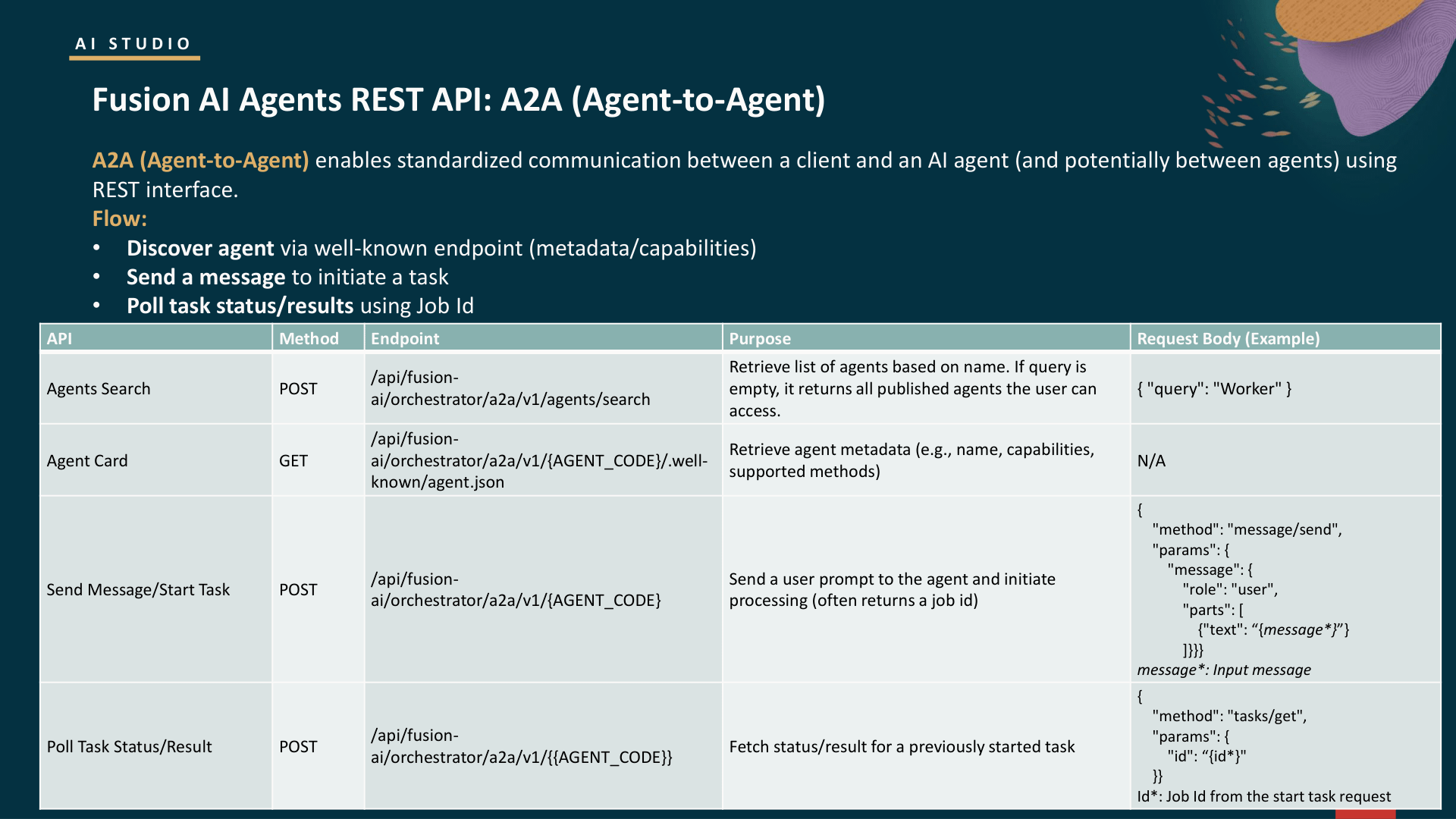
The interesting part is that Fusion agents aren’t just being called by external systems here - they’re discoverable by other agents. If you’re running a multi-platform environment, this is where agents actually start talking to each other across platforms.
Alongside A2A, 26A also introduced MCP client support - allowing agents to connect to MCP-compliant external servers using a standardised bidirectional protocol. Where the External REST tool requires you to configure each API endpoint manually, MCP lets the agent discover available tools from an external server automatically. It’s early days, but the direction is clear: agents that can find and use capabilities they weren’t explicitly configured for.
Where Users Actually Find Your Agents
One aspect of trigger and channel design that doesn’t get enough attention is how end users discover and access published agents. Beyond the Fusion chat widget and the Teams/Slack integrations, there are several embedding paths worth knowing about:
Deployment Path Best For Context-Aware Setup Effort Agent Explorer Users discovering all available agents No Zero - it’s built in Guided Journeys Step-by-step tasks embedded in Redwood pages Partial Two-step config VB Studio / Smart Actions Module-specific contextual AI Yes - auto-detects page context Developer-level Triggers Automated background processing N/A AI Studio config External Access (invokeAsync) Agents called from external apps N/A OCI IAM token setup
Agent Explorer is the simplest path - it’s essentially a personal AI app store inside Fusion. Users navigate to Me > Show More > AI Agent Studio, or hit the direct URL (/fscmUI/redwood/human-resources/ai-studio/agent-explore). It has two tabs: “Needs Attention” for ongoing conversations and history, and “Explore” for searching all published agents. End users only see agents where the security configuration matches their role.
Smart Actions via VB Studio offer the deepest integration. The agent is context-sensitive - it can automatically detect and pull data from the page the user is currently viewing. No manual input required. But availability is limited - it’s not universal across all modules. Check product-specific documentation before planning around it.
Guided Journeys got a useful enhancement in 26B: you can now trigger a workflow agent on journey task completion or task save, which opens up scenarios where completing a guided step automatically kicks off background processing.
The AI Agent Marketplace (26B) is the new addition to keep an eye on. It’s embedded natively within Fusion - users can discover, test, and deploy third-party agents directly. For partners, this is the distribution channel.
Where you deploy the agent matters because it changes whether people actually find and use it. An agent embedded via Smart Actions in the right Redwood page at the right moment will get used. The same agent, only accessible through the standalone chat widget, probably won’t.
What to Make of All This
Trigger design doesn’t get enough attention, and it should - because the trigger basically defines how the whole integration works:
Webhook-triggered workflows are designed for system-to-system communication. They need to be solid, parameterisable, and optimised for reliability.
Email-triggered workflows are designed around document ingestion. Their success depends on how well the extraction handles real-world content.
Schedule-triggered workflows are designed for periodic governance. Their value depends on running reliably at the right cadence.
If you think about this upfront, the architecture stays clean. If you don’t, you’re reworking integration logic after the fact.
These trigger types don’t need to be used in isolation either. A common pattern is a schedule-triggered workflow that runs a periodic check, with a Workflow node inside it that calls a webhook-triggered agent to handle exception processing. The layering gives each component a clean responsibility - and with embedded workflows, those components become properly reusable across different contexts.
Security Roles: The Full Picture
Since triggers, channels, and external access all have role requirements, here they are in one place. The admin roles are pillar-specific:
HCM:
ORA_DR_FAI_GENERATIVE_AI_AGENT_HCM_ADMINISTRATOR_DUTYSCM:
ORA_DR_FAI_GENERATIVE_AI_AGENT_SCM_ADMINISTRATOR_DUTYERP/FIN:
ORA_DR_FAI_GENERATIVE_AI_AGENT_FIN_ADMINISTRATOR_DUTYPRC:
ORA_DR_FAI_GENERATIVE_AI_AGENT_PRC_ADMINISTRATOR_DUTYCX:
ORA_DR_FAI_GENERATIVE_AI_AGENT_CX_ADMINISTRATOR_DUTY
End users need ORA_DR_FAI_GENERATIVE_AI_AGENT_RUNTIME_DUTY (with the HRC_ACCESS_AI_AGENT_CHAT_PRIV privilege) to interact with agents through Explorer or chat. For the External REST tool, you need ORA_FND_TRAP_PRIV (Create and Edit Backends for Visual Builder Studio). And as mentioned above, scheduled workflows require ORA_DR_FAI_BATCH_JOB_MANAGER_DUTY.
A user only sees an agent in Agent Explorer if the security assigned to that agent matches their access criteria and the agent has been published. This is by design - but it means your security review needs to happen before your UAT, not during it.
Disclaimer: The views here are my own and draw on Oracle's partner training sessions and publicly available documentation. All screenshots in this article are from Oracle's AI Agent Studio Partner Training (March 2026) and remain the property of Oracle Corporation. Oracle's guidance evolves - always verify with official docs and test in your own environment before making production decision