
I spent 17–19 August building on a 26C pod in Oracle’s partner enablement labs. As I worked through the labs, the app’s summary area sometimes returned text when I expected a widget, displayed the wrong one or stayed blank. Most of those cases came down to the App Experience settings and the prompts being out of sync.
In my earlier piece on what is inside a Fusion agentic app, I listed the seven widgets available in 26B, along with their pattern IDs and Oracle’s guidance on when to use each one. The 26C readiness note adds Multi-Card and Artifact Preview, bringing the total to nine.
The short version
26C adds two widgets, taking the total from seven to nine. Oracle’s readiness note identifies Multi-Card and Artifact Preview as the additions, and the current widget guide lists their pattern IDs as
multiCardWidgetandartifactPreviewWidget.In the lab authoring flow, two things have to agree. The widget must be selected in the App Experience settings on the
InitDisplayLLM node and named in the instructions available to the agent. If those two places disagree, you can get the wrong widget or no widget.The prompt controls the layout. In Lab 3, I added two columns to a multi-record widget by changing the field list in the Init Display User Prompt. There was no separate schema or configuration screen to update.
Set
readOnlyexplicitly onrecordWidget. In the training pod, leaving it unspecified produced different values across runs.Actions can be assigned row by row. One row can be clickable while the next is not, even within the same list.
There is a second identifier set. The LLM output uses
patternIdvalues. Oracle’s public 26C sample workflows also containORA_LAYOUT_*values underaiAppOutputSpecification.dataDisplay.layouts. A training slide placed similar values in an app-leveldisplayWidgetList, but I have not reproduced that exact field or its scope.
The nine widgets in 26C
Chart (
chartWidget) for trends over time, comparisons across categories or proportions.Card (
cardWidget) for a single alert or update, with error, warning and info variants.Messages List (
messageListWidget) for several alerts, with optional priority and actions on each item. Oracle’s earlier CoE guide calls this one “Message List”.Change List (
changeListWidget) for comparing a KPI’s current and previous values.Multi Record (
multiRecordWidget) for tabular data with row-level status and actions.Record (
recordWidget) for showing one record as either a detail view or an editable form, usingreadOnlytrue or false.Sankey (
sankeyWidget) for a flow or funnel where relative volume matters.Multi Card (
multiCardWidget, new in 26C) for displaying several peer cards in one widget.Artifact Preview (
artifactPreviewWidget, new in 26C) for reviewing text, rich text, structured rich text, PDF or URL content in place.
Use multiCardWidget when related cards belong together in one widget. cardWidget is for a single update; messageListWidget presents a list. The session slides listed text, rich text, PDF and URL support for Artifact Preview. Oracle’s current 26C widget guide now confirms those formats, adds structured rich text, and notes that PDF and URL content remains read-only even when edit mode is requested.
Widget output is wrapped in <oraInfoDisplay> and identifies the widget with patternId. Be careful with the payload wrapper. Oracle’s current 26C page describes a widget-specific config block and uses it in most examples, while its Artifact Preview example uses properties. Older Fusion CoE examples also use properties, often alongside title and description. I would follow the example for the target release and widget instead of assuming one four-key wrapper applies everywhere. Oracle’s Agentic Apps – Widgets article remains useful for the original seven property schemas.
A widget has to be enabled and prompted
In the authoring flow used in the labs, the training described widget setup as a two-step sequence.
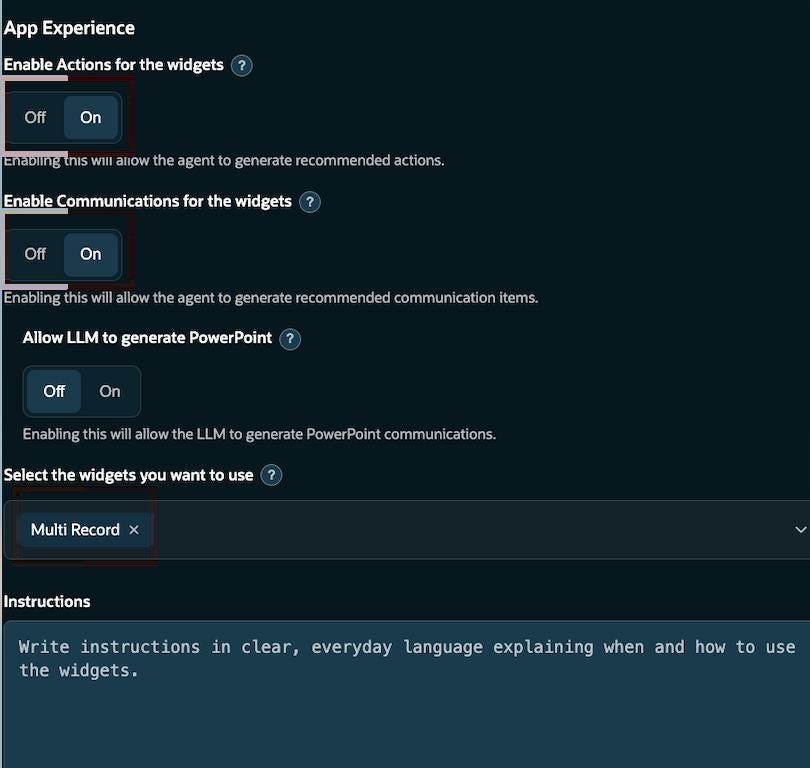
First, enable the widget. On the InitDisplay LLM node, the App Experience section contains a picker labelled “Select the widgets you want to use”. In the Lab 3 example below, Multi Record is the only selection. The same section has toggles for actions, communications and PowerPoint generation, as well as an Instructions box. Its help text asks for clear, everyday guidance on when and how the widgets should be used.
For an app designed around one widget type, I keep the selection narrow. There is little benefit in enabling five when the instructions use only one.
Second, describe the output you want. The Initial Graphics Display Instructions tell the agent how to use the enabled widget. Its response includes the patternId and configuration block that the UI renders.
The lab guidance put app-wide formatting and widget rules in the App Experience tab’s Instructions field. Guidance for one agent went in that agent’s prompt or its workflow LLM node prompt. This keeps the same general widget instructions from being copied and maintained across several agents.
Adding two columns in Lab 3
Lab 3, Exercise 1 made the prompt’s role especially clear. The starting point was a multi-record widget showing deals. The exercise asked us to add Revenue (USD) and Win Prob (%) as two new columns. There was no column designer and no schema change. The only required layout edit was to the field list in the Init Display User Prompt:
Return as multiRecordWidget with:
- Name
- RecommendedAction (if present)
- Deal Risk
- Revenue (USD)
- Win Prob (%)
Six steps get that edit into a running app.
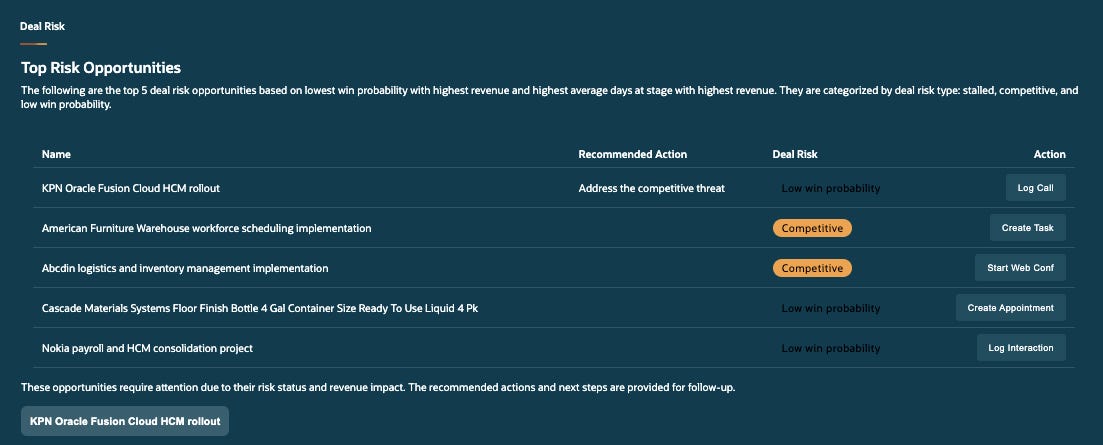
The full change took six steps:
Open the Deal Risk workflow agent and locate the
InitDisplaybranch of the message-hint switch.Open the
Init DisplayLLM node, codeINIT_DISPLAY. Its panel contains Name, Code and Error Handler, the language and chat-history toggles, and the two prompts.Find the rendered field list in the User Prompt. Add Revenue (USD) after Deal Risk, followed by Win Prob (%).
In App Experience, confirm that
Multi Recordis selected under “Select the widgets you want to use”. The lab also has actions and communications enabled. Match those settings when reproducing the exercise, but treat them as separate capabilities; communications are not what makes a table row clickable.Publish the workflow agent. In the lab environment, draft changes did not reach the running app unless
useDraftWorkflowWhileDevelopingwas set in the app JSON. The field now appears in Oracle’s public 26C sample app files with bothtrueandfalsevalues, although I have not found its runtime behaviour explained in the prose documentation. Publishing remains the safest default.Reopen the app and run it. The table should now contain both columns.
The exercise changed how I think about prompt governance. If a prompt edit can add or remove a column, the prompt is part of the layout specification. It deserves the same version control and regression testing as a page definition. On many of the programmes I see, prompts are still reviewed mainly as copy, which leaves this part of the interface under-governed.
Four common reasons a widget does not render
The following failures came up several times during the sessions. Oracle’s current documentation now confirms the two-step enable-and-prompt requirement and the need for specific widget instructions. The run-to-run readOnly behaviour and the exact failure symptoms below remain observations from the training pod, so I still treat the list as a practical pre-flight check rather than a product guarantee.
The settings and prompt disagree. If a widget is enabled but never named in the prompt, the agent has not been told to use it. If it is named but not enabled, the agent is not allowed to use it. The UI does not flag either mismatch.
readOnlyis not specified. WithrecordWidget, the same prompt can producereadOnly: trueon one run andreadOnly: falseon another. If the user needs an editable form, state that directly in the instructions.Several widgets are enabled without selection criteria. You can enable more than one, but the agent then needs a rule for choosing between them and enough data for each valid choice. If you enable a chart and a multi-record table but provide five rows with no series, there is nothing for the chart branch to plot.
The requested content is underspecified. The model generates the widget JSON from your instructions, so it needs enough detail to shape the response correctly. Name both the widget and the fields you want.
Most of these are straightforward configuration errors. I now check the widget picker, the prompt and the available data before rewriting any instructions. Otherwise, it is easy to spend an hour polishing a prompt that was never the source of the failure.
Actions can vary by row
In a message list or multi-record widget, actions are attached at row level. A row with a genuine recommendation can be clickable while the next row has no action at all.
The trainers also drew a comparison with Redwood tables. I have not validated that side of the comparison and would not present it as a Redwood limitation without doing so. What I did confirm is the agentic-app behaviour: actions can vary from one row to the next.
That row-level control is useful when only two of ten records have a meaningful next step. Make those two clickable and leave the other eight alone.
patternId and ORA_LAYOUT_* appear at different layers
One session slide showed a CLI-generated app configuration whose displayWidgetList array used a second naming scheme: ORA_LAYOUT_CARD, ORA_LAYOUT_CHANGE_LIST and ORA_LAYOUT_RECORD.
Oracle’s public Fusion AI Studio sample repository now confirms the ORA_LAYOUT_* vocabulary. In the 26C branch, sample workflow files store values such as ORA_LAYOUT_MESSAGES_LIST, ORA_LAYOUT_CHANGE_LIST, ORA_LAYOUT_CARD, ORA_LAYOUT_RECORD, ORA_LAYOUT_MULTIRECORD, ORA_LAYOUT_CHART and ORA_LAYOUT_MULTICARD under aiAppOutputSpecification.dataDisplay.layouts. The same nodes use familiar patternId values in their widget instructions.
That is good evidence that the two vocabularies belong to different parts of the configuration. It does not confirm the slide’s exact displayWidgetList field or prove that it is an app-wide allow-list: that field does not appear in the current public samples I checked. For pro-code debugging, inspect the workflow node’s dataDisplay.layouts array and compare it with the widget requested in the prompt. If your app export also contains displayWidgetList, verify its behaviour in that release before depending on it.
Widgets are not limited to the InitDisplay region. Oracle’s workflow guide says Query responses can include displays and that AdditionalContent requests load extra panels; the widget guide uses <oraInfoDisplay> for widget output. The public samples place dataDisplay.layouts at node level, so check the node handling the relevant path rather than assuming one list covers the whole app.
Sources: hands-on labs at Oracle’s partner enablement, 17-19 August 2026; the Public lab guides issued alongside them, 26C documentation and the public 26C readiness note. Views are my own, not my employer’s or Oracle’s.